How to print a protractor to scale
A protractor only measures angles correctly if it prints at its true size. The single setting that decides this is the print scale: it must be 100 percent, with fit to page or shrink to fit turned off. This guide shows where that setting lives in each common print dialog, and how to confirm the result in two seconds with a calibration bar before you trust a single angle.
The one setting that decides it
A printer cannot print to the very edge of a sheet. To make room for that unprintable margin, most print dialogs default to a setting like fit to page or shrink to fit, which quietly resizes the whole page. For a photo that is fine. For a protractor it is the difference between a usable tool and a slightly wrong one, because every angle and the ruler shrink with the page.
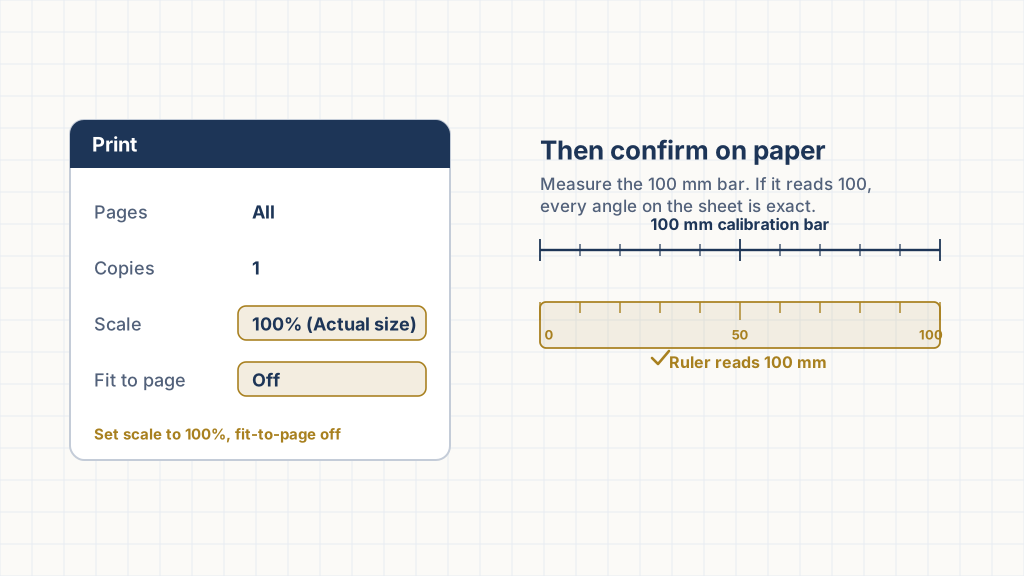
So the rule is simple and the same everywhere: print at 100 percent, with page scaling set to None or Actual size. Authoritative printable-tool sites say the same thing, often in stronger words.
"Avoid using the 'fit to page', 'scale to fit', or 'fill entire paper' options as these will cause the image to be printed larger or smaller than its actual size."
Source: Printable-Ruler.net, printing instructions: https://www.printable-ruler.net/Adobe's own print-options reference describes "Actual size" as the choice that "does not scale" and prints at 100 percent, while "Fit" scales pages up or down to fill the paper. For a to-scale print, set Page Scaling to None.
Source: Adobe, Scale or resize printed pages: https://helpx.adobe.com/acrobat/kb/scale-or-resize-printed-pages.htmlStep by step
- Open the PDF, not a screenshot. A PDF carries real physical dimensions. A screenshot or saved web image is only pixels and will print at whatever size the page chooses.
- Open the print dialog and find the scale. In a browser it is "Scale" or "Page scaling". In Acrobat it is "Page Sizing and Handling".
- Set it to 100 percent or Actual size. Turn off fit to page, shrink to fit, or fill entire paper. If there is a "Page Scaling" menu, choose None.
- Print, then measure the calibration bar. Lay a ruler across the printed 100 millimetre bar. If it reads 100 mm, your protractor is to scale.
Why a quick check beats trusting the settings
Print drivers vary, and a setting that looks right can still be overridden by the driver to fit the margin. That is why the calibration bar exists. Measuring it takes two seconds and turns "I think it is right" into "I know it is right". Printable-ruler guides recommend the same self-test: confirm the printout against a known length before you use it. A standard sheet of US Letter paper, for example, should measure exactly 8.5 by 11 inches.
"Test the size of the printout prior to use by measuring another sheet of paper (a sheet of letter paper should measure exactly 8.5 by 11 inches)."
Source: Printable-Ruler.net: https://www.printable-ruler.net/When you are ready, the printable protractor tool builds a to-scale PDF with the calibration bar already on it, so the only thing left to do is print at 100 percent and measure.